

Accounts
A TradingView file doesn't name the account, so you choose one on import. If you run more than one AMP account, export each separately and give it its own name. Every statistic can be filtered by one account or shown across all of them.
Integration
To journal AMP Futures trades in Premo, sign in to TradingView with your AMP/CQG login, export Order History as a CSV and upload it. It works whichever of AMP's CQG platforms you trade on. Premo counts filled orders, reads AMP and CQG symbols such as EP and ENQ, and adds an estimated commission you can check against your statement.
Last reviewed .
| Symbol | Side | Fill quantity | Avg fill price | Status |
|---|---|---|---|---|
| F.US.MNQZ26 | Buy | 3 | 21400 | Filled |
| F.US.MNQZ26 | Sell | 1 | 21410 | Filled |
| F.US.MNQZ26 | Sell | 0 | Cancelled | |
| F.US.MNQZ26 | Sell | 2 | 21420 | Filled |
Some columns left out to fit. Struck-out rows are skipped.
Step by step
The file comes from TradingView, where your AMP account connects through CQG.
Open a chart and the trading panel, signed in with your AMP/CQG login. Trades you placed on any other CQG platform are on the same account, so they show here too.
In the Order history tab, turn on Symbol, Side, Fill quantity, Avg fill price, Status, Status time and Order ID. Positions shows only what's open now, so use Order history.
Click the download icon at the far right of the trading panel, level with the Positions, Orders and Order history tabs.

In Download data, choose Order history from the list and save the CSV. Each tab exports on its own.
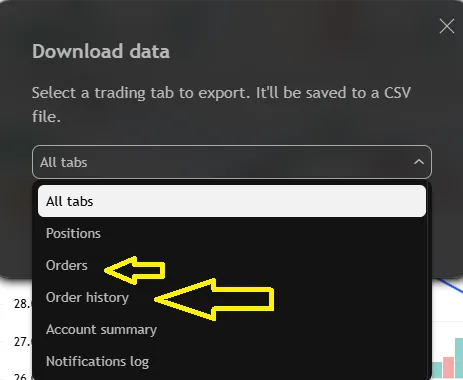
Premo looks for the status Filled, and values are written in the interface language.
Open Import Trades from CSV and find the TradingView AMP CSV row. Fill in Account, press Choose file, then Load.
For the full walkthrough and common problems, read how to export trades from TradingView.
The file
Each row is an order. AMP's file has a Status column, and that's what decides whether a row counts.
| Column | Use | What Premo does with it |
|---|---|---|
| Symbol | Required | The contract, including AMP and CQG names such as F.US.MNQZ26 |
| Side | Required | Buy or Sell |
| Status | Required | Only Filled counts |
| Fill quantity | Required | Contracts filled |
| Avg fill price | Required | The price used for the fill |
| Status time | Required | Sets the trading day and the order of fills |
| Order ID | Required | Stops a repeat import counting twice |
| Commission | Not used | Empty in the exports we tested, so Premo adds an estimate instead |
| Type, Quantity, Limit price, Stop price, Active at, Placing time, Duration | Not used | Left in the file and ignored |
Commission
Premo adds an estimate of $1.50 a contract on each side, or $3.00 for one contract in and out. No exchange fees are added separately.
| Order | Contracts | Fill | P&L | Est. commission |
|---|---|---|---|---|
| Buy | 3 | 21,400.00 | $4.50 | |
| Sell | 1 | 21,410.00 | $20.00 | $1.50 |
| Sell | 2 | 21,420.00 | $80.00 | $3.00 |
| Trade | $100.00 | $9.00 |
That's one trade with a net result of $91 on the estimate. Your real commission depends on your AMP plan and the contract, so check a day against your statement. If the estimate is off, add a manual adjustment so your totals match. On micros this matters: a few dollars a round trip can be a real share of a small target.
Symbols
AMP's export uses CQG-style names, which don't always match the symbol on your chart. Premo reads them for you.
| In the file | Contract | Point value |
|---|---|---|
F.US.MNQZ26 | Micro E-mini Nasdaq-100, December 2026 | $2 |
F.US.MESZ26 | Micro E-mini S&P 500, December 2026 | $5 |
F.US.ENQZ26 | E-mini Nasdaq-100 (NQ), December 2026 | $20 |
F.US.EPZ26 | E-mini S&P 500 (ES), December 2026 | $50 |
Premo knows the tick size and tick value of the main CME equity index E-minis and Micro E-minis, plus the usual energy, metal, rate, currency and crypto contracts. The contract month stays in the symbol, so two months of one contract are never mixed. To look up a contract, use the free tick value calculator, and size your next trade with the position size calculator.
CQG
Trade your AMP account on any CQG platform AMP offers, and journal it from one TradingView export.
Your AMP/CQG account is the same whichever platform you trade it on. Sign in to TradingView's trading panel with that login and Order history lists the account's orders, including the ones you placed in Sierra Chart, CQG Desktop or any other CQG platform. Export it with the steps above and Premo imports the fills. You never need to export from the other platform.
AMP's list of CQG platforms on ampfutures.com, checked 7 November 2026.
| Where you trade | What Premo reads |
|---|---|
| AMP/CQG account on TradingView | TradingView Order History CSV, on the TradingView AMP CSV row |
| Any other AMP CQG platform, such as CQG Desktop or Sierra Chart | The same TradingView Order History CSV, signed in with the same AMP/CQG login |
| AMP on Quantower (CQG connection) | Either the TradingView export, or Quantower's own Trades export: see the Quantower guide |
The symbols in the file keep CQG's names, such as F.US.EPZ26 for the E-mini S&P
500. The symbol table above shows how Premo reads them.
Good to know
A TradingView file doesn't name the account, so you choose one on import. If you run more than one AMP account, export each separately and give it its own name. Every statistic can be filtered by one account or shown across all of them.
Premo stores the time as the file writes it and treats it as Eastern Time. If your export is in another zone, your hourly statistics shift by the difference, so check one trade against your chart after your first import.
After the import
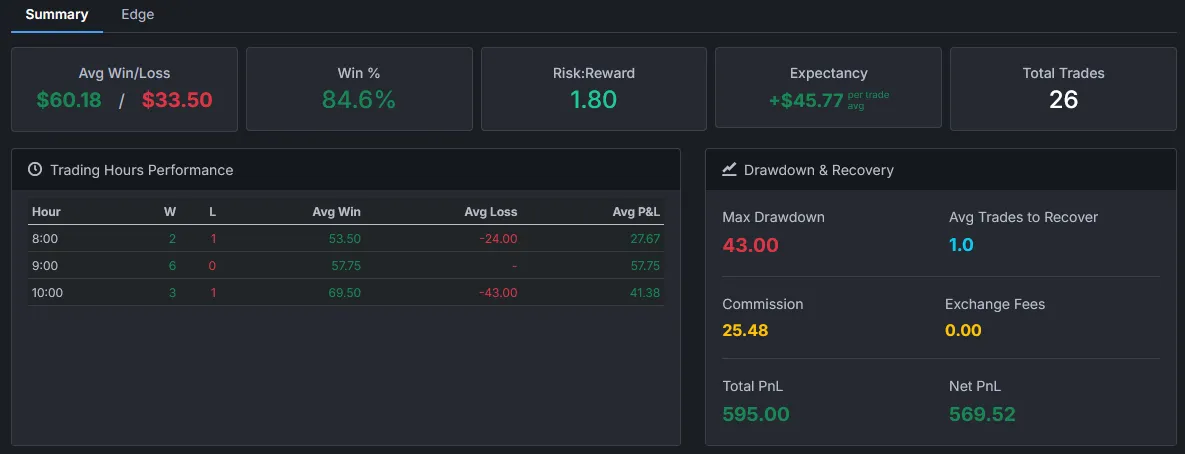
Every position carries the commission estimate, so you see net P&L beside your drawdown and how many trades it took to recover.
Questions
With Premo, export Order History from TradingView for your AMP account, open Import Trades from CSV, find the TradingView AMP CSV row, enter an account name, choose the file and press Load.
AMP Futures gives TradingView access through its CQG connection, and you sign in with your AMP/CQG login. So this page covers AMP accounts trading through CQG on TradingView, and the file comes from TradingView's Order History.
Yes, with any of AMP's CQG platforms. They all trade the same AMP/CQG account, so sign in to TradingView with that login and export Order history: your trades from the other platform are in it. Premo reads that TradingView file, not the files CQG's own platforms write.
The file has a Commission column, but it was empty in the exports we tested, and Premo doesn't read it. Premo adds an estimate of $1.50 a contract on each side: $3.00 for one contract in and out. Your real cost depends on your AMP plan and the contract.
Only rows with a Status of Filled and a Fill quantity above 0. Cancelled, rejected and working orders stay in the file but are skipped.
Those are the names AMP and CQG use. EP is the E-mini S&P 500 and ENQ is the E-mini Nasdaq-100. Premo maps them to the same contract specs as ES and NQ, so the point value is right.
The one you choose. A TradingView file names no account, so Premo asks for one on import. If you trade several AMP accounts, export each one separately and give each its own name.



Trading involves substantial risk of loss and is not suitable for everyone. Nothing on this site or in the platform is financial, investment, tax or legal advice. Examples are illustrations, not real trades. TradingView, AMP and CQG are trademarks of their owners. Premo Trading is not affiliated with them.
See expectancy, drawdown and your best hours, for each account.
14 days free · Cancel anytime · Secure checkout by Stripe