

Several accounts in one file
Every row names its account, so you can export all of them at once and they stay apart. A sale in one account never closes a purchase in another. Filter every statistic by one account or see them together.
Integration
To journal Quantower trades in Premo, open the Trades panel, export it with Export Data as a comma-separated file with every column ticked, and upload the CSV. Premo rebuilds your fills into positions with the Fee column included, so you see expectancy after fees by account, symbol and hour.
Last reviewed .
| Symbol | Side | Quantity | Price | Fee |
|---|---|---|---|---|
| /MNQ:XCME | Buy | 2 | 21,400.00 | 1.24 USD |
| /MNQ:XCME | Sell | -2 | 21,412.50 | 1.24 USD |
Some columns left out to fit. Struck-out rows are skipped.
Step by step
The file comes from Quantower's Trades panel, and every row names its account and connection.
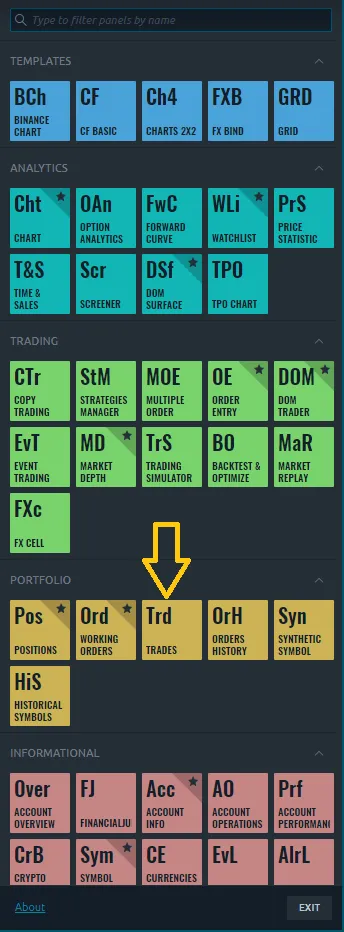
Click the Quantower logo at the top left to open the main menu, then choose Trades (Trd) under Portfolio.
Pick Today, Yesterday, Last 7 Days, This Month or Last Month, or choose Custom, enter the dates and press Load.
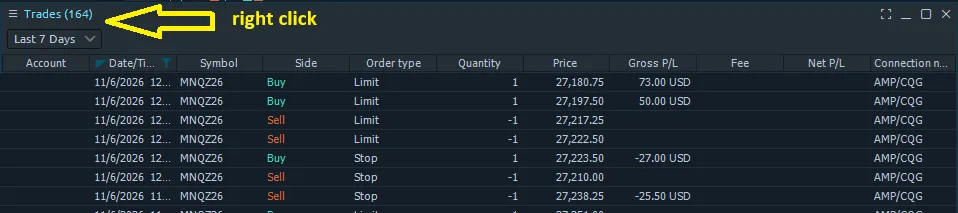
Right-click the Trades title at the top left of the panel, or click the menu icon beside it.
Export Data is near the bottom of the panel menu, below Setup Actions.
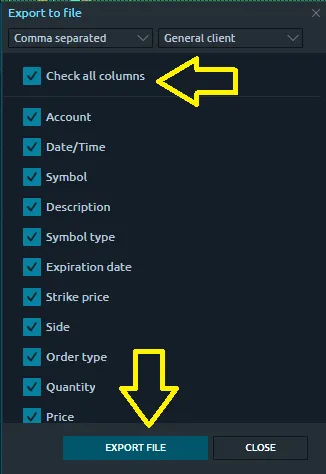
In Export to file, choose Comma separated, tick Check all columns, then press Export file and save the CSV.
Open Import Trades from CSV and find the Quantower CSV row. Leave Account blank to use the account in the file, press Choose file, then Load.
The file
Each row is one fill. A sale shows a negative quantity, and Premo combines the fills into positions.
| Column | Use | What Premo does with it |
|---|---|---|
| Date/Time | Required | Sets the trading day and the order of fills |
| Symbol | Required | The instrument, such as /MNQ:XCME |
| Side, Quantity | Required | Buy or Sell, and how many. Sales are written as negative numbers |
| Price | Required | The fill price |
| Trade ID | Required | Stops a repeat import counting twice |
| Account | Read | Files the row under that account |
| Fee | Read | Counted as fees on the fill |
| Gross P/L, Net P/L, Trade Value | Not used | Premo works out P&L from the fills itself |
| Description, Symbol type, Expiration date, Strike price, Order Type, Order ID, Position ID, Connection, Comment, Exchange | Not used | Left in the file and ignored |
Good to know
Every row names its account, so you can export all of them at once and they stay apart. A sale in one account never closes a purchase in another. Filter every statistic by one account or see them together.
Quantower writes the same columns whichever broker or feed placed the trade: an AMP account on CQG, a Rithmic prop account, or a crypto exchange. The Connection column says which one, and Premo doesn't need it.
Quantower writes your computer's local time. Premo treats it as Eastern Time, so if you trade from another zone your hourly statistics shift by the difference. Check one trade against your chart after your first import.
Premo knows the tick size and tick value of the main CME equity index E-minis and Micro E-minis, plus the usual energy, metal, rate and currency contracts. Look one up with the free tick value calculator.
After the import
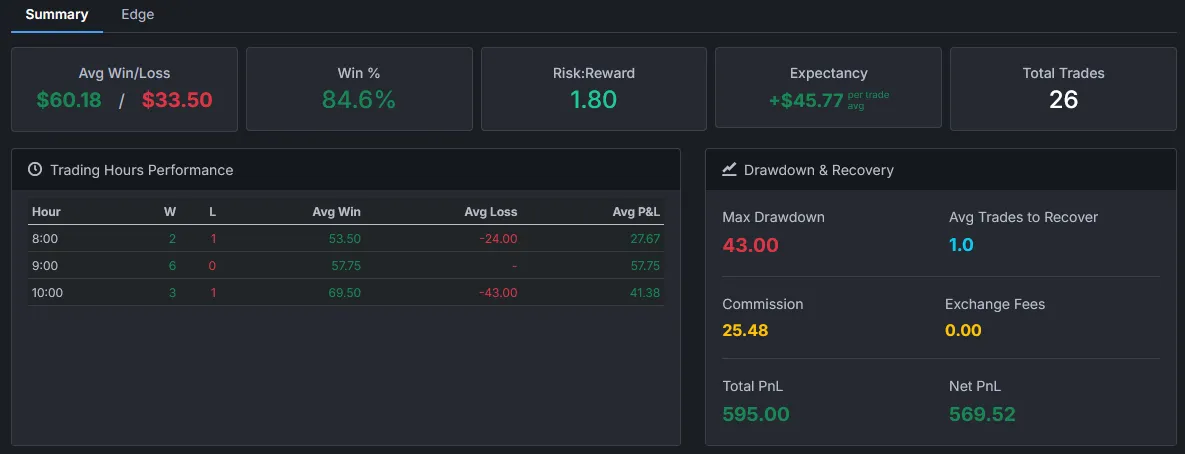
Every position carries the fees from your Quantower file, so you see net P&L beside your drawdown and how many trades it took to recover.
Questions
With Premo, open the Trades panel in Quantower, choose the period, right-click the panel title, choose Export Data, tick Check all columns with Comma separated selected and press Export file. Then open Import Trades from CSV, find the Quantower CSV row, choose the file and press Load.
Date/Time, Symbol, Side, Quantity, Price and Trade ID. Account and Fee are read when they are there. Ticking Check all columns in the export is the simple way to include them all.
The file is Quantower's own Trades export, so it has the same columns whichever connection placed the trade, such as AMP/CQG, Rithmic or a crypto exchange. Each row names its connection.
Yes. Premo reads the Fee column on each fill and keeps it apart from your gross P&L, so you see both. Quantower's own Gross P/L and Net P/L columns aren't used, because Premo rebuilds each position from the fills.
Yes. The export names the account on every row, so each one stays separate in your journal. Fill in the Account box on import only if you want the fills filed under a different name.
Quantower writes Date/Time in your computer's regional format. Premo reads US dates, month first, such as 5/19/2026 9:31:05 AM. If your Windows region writes the day first, check a trade against Quantower after your first import.
Yes. You export a file and upload it. Premo never touches your orders, your Quantower workspace or your broker account.



Trading involves substantial risk of loss and is not suitable for everyone. Nothing on this site or in the platform is financial, investment, tax or legal advice. Examples are illustrations, not real trades. Quantower, AMP, CQG and Rithmic are trademarks of their owners. Premo Trading is not affiliated with them.
See expectancy after fees, by account, by symbol and by hour.
14 days free · Cancel anytime · Secure checkout by Stripe