
Prove the edge first
A setup needs a positive expectancy over enough trades. See yours, with win rate and risk:reward, before you size it up. Read why expectancy decides your edge.
Integration
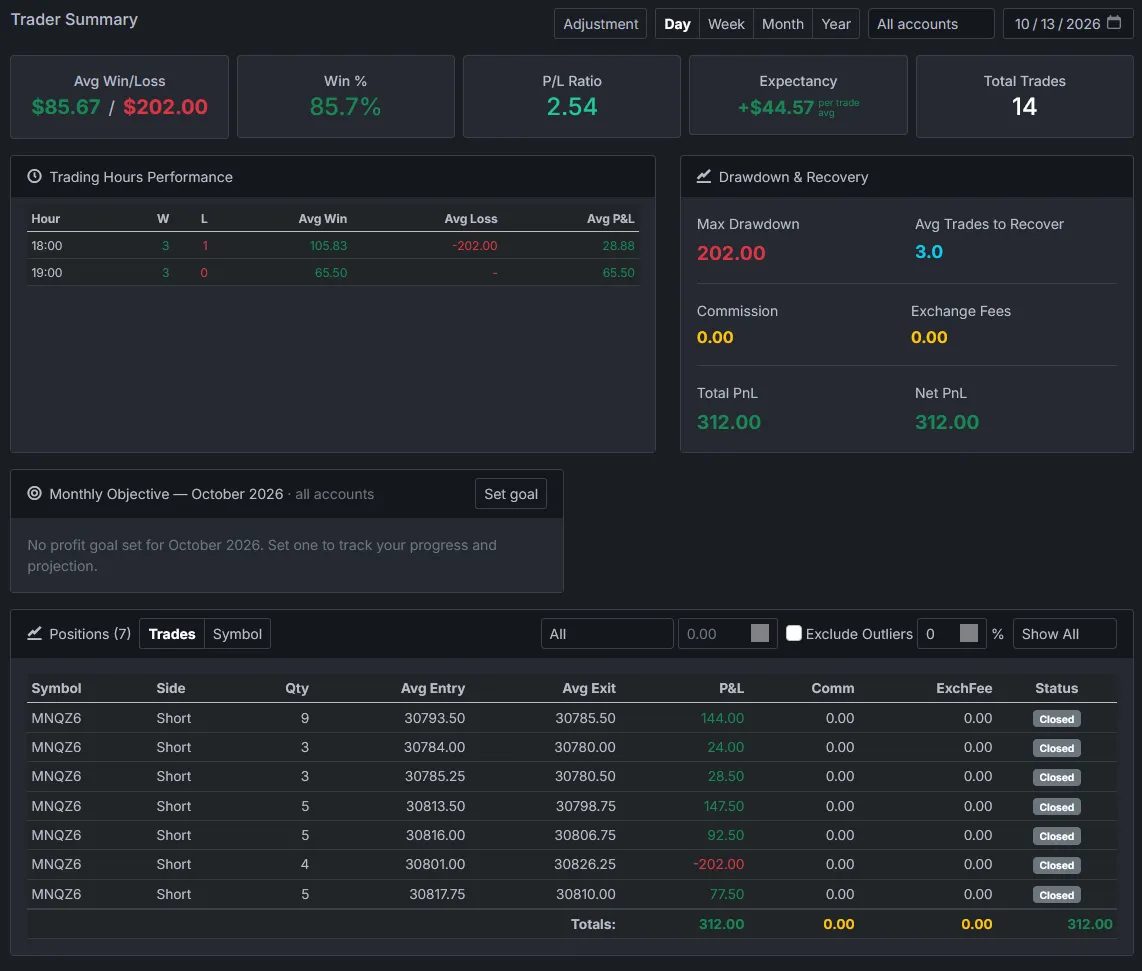
To journal TradingView paper trades in Premo, open the Paper Trading panel, export the History tab with Export data, and upload the CSV to its own account. Premo keeps the filled orders, rebuilds them into round trips and shows win rate, expectancy and P&L by hour, apart from your live results.
Last reviewed .
| Symbol | Side | Qty | Fill Price | Status |
|---|---|---|---|---|
| CME_MINI:MES1! | Buy | 2 | 5800.00 | Filled |
| CME_MINI:MES1! | Sell | 2 | Rejected | |
| CME_MINI:MES1! | Sell | 2 | 5806.25 | Filled |
Some columns left out to fit. Struck-out rows are skipped.
Step by step
The file comes from the History tab of TradingView's Paper Trading panel.
Open any chart and click Paper Trading in the bar under it. The panel opens with your simulated account.
Open the History tab, click the three-dot icon at the right of the table and tick every column.
Click Paper Trading at the top left of the panel to open its menu, then choose Export data.
In the Export data window, choose History and press Export. The CSV downloads by itself.
Premo looks for the status Filled, and values are written in the interface language.
Open Import Trades from CSV and find the TradingView Paper Trading CSV row. Name the account, such as Paper, press Choose file, then Load.
The file
Each row is an order. The Status column decides whether a row counts.
| Column | Use | What Premo does with it |
|---|---|---|
| Symbol | Required | The instrument with its exchange, such as CME_MINI:MES1! or NASDAQ:AMZN |
| Side | Required | Buy or Sell |
| Qty | Required | Shares, contracts or units |
| Fill Price | Required | The price used for the fill |
| Status | Required | Only Filled counts |
| Closing Time | Required | When the order filled, which sets the trading day and the order of fills |
| Order ID | Required | Stops a repeat import counting twice |
| Commission | Read | Counted when you set a commission in TradingView |
| Type, Price, Placing Time, Leverage, Margin | Not used | Left in the file and ignored |
Practice with a purpose
Paper trading is where a new setup proves itself, or doesn't, before real money is on it.
A setup needs a positive expectancy over enough trades. See yours, with win rate and risk:reward, before you size it up. Read why expectancy decides your edge.
Import paper trades into their own account, then compare paper and live side by side. A gap between the two usually points at execution, not the setup.
Practise under the same limits as your evaluation and check your drawdown against them. The free trailing drawdown calculator shows how much room you have.
Set a commission in TradingView's Commission Settings before you practise. Paper results with no costs look better than live ones ever will.
After the import
Each filled order becomes part of a position, with weighted-average entries and exits, so a practice trade reads the same way a live one does.
Questions
With Premo, open the Paper Trading panel, go to History, open the Paper Trading menu, choose Export data, pick History and press Export. Then open Import Trades from CSV, find the TradingView Paper Trading CSV row, name the account, choose the file and press Load.
The panel has a History tab listing your orders and a Trading Journal tab with text notes about them. It doesn't work out win rate, expectancy or P&L by hour. Premo adds those once you upload the History export.
Yes. Give them their own account name on import, such as Paper. Every statistic can be filtered by one account, so your paper and live results stay apart, and you can compare them side by side.
Only rows with a Status of Filled. Cancelled and rejected orders stay in the file but are skipped, so a rejected market order never shows up as a trade.
Yes, when you set one. TradingView's Paper Trading menu has Commission Settings, and the commission it charges is written in the Commission column. Premo counts it. If you never set one, the column is empty and your paper trades show no commission.
TradingView writes the exchange before the symbol, and 1! means the continuous front-month contract. Premo drops the exchange prefix, and reads ES1! and MNQ1! as ES and MNQ, so the point value is right.
Yes, for Tradovate and AMP accounts, from the Order History tab. Each has its own guide and import row: see the TradingView guide.




Trading involves substantial risk of loss and is not suitable for everyone. Nothing on this site or in the platform is financial, investment, tax or legal advice. Examples are illustrations, not real trades. TradingView is a trademark of its owner. Premo Trading is not affiliated with them.
Upload your paper history and see your expectancy before you risk a dollar.
14 days free · Cancel anytime · Secure checkout by Stripe