
Integration
TradingView trading journal
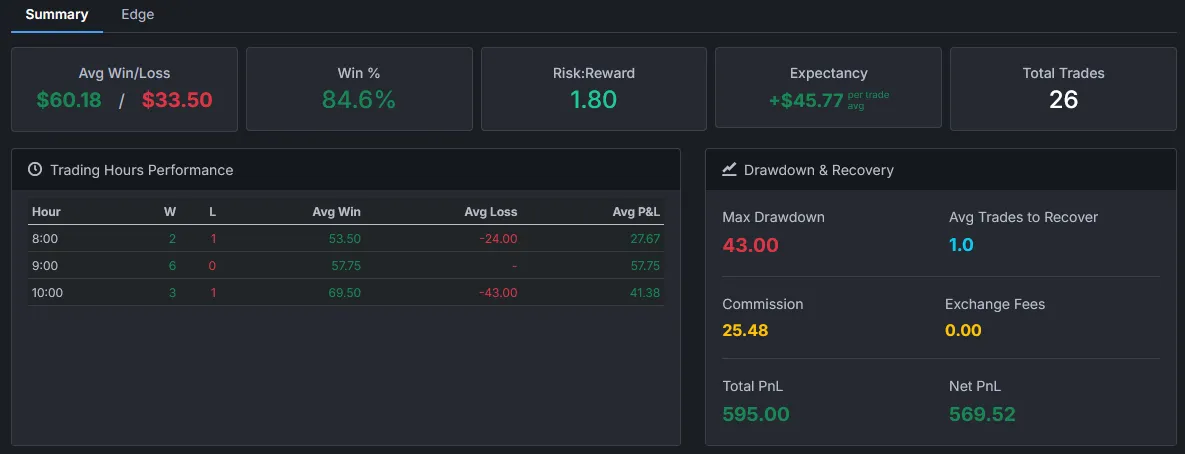
Premo is a trading journal for TradingView traders with Tradovate or AMP accounts. Export Order History from the trading panel as a CSV, upload it, and Premo rebuilds your orders into round-trip positions with expectancy, drawdown and P&L by hour. Nothing connects to your account.
Last reviewed .
- Brokers
- Tradovate and AMP
- Markets
- Futures
- File
- Order History CSV
- Paper Trading
- Supported, see its guide
Step by step
How to export your TradingView trade history
The same steps work for both brokers. Column names differ, so use the row for your broker in Premo.
-
Open the trading panel
Open a chart with your Tradovate or AMP account connected and selected. The panel sits below the chart.
-
Go to the Order History tab
Order History lists filled, cancelled and rejected orders. Positions and Account History are not what Premo reads.
-
Show every column
The columns differ by broker, and showing them all is the simple way to include what Premo needs.
-
Download the CSV
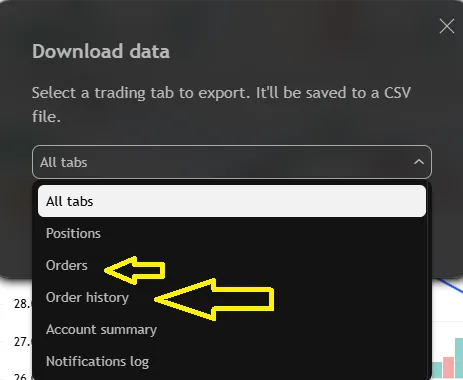
Click the download icon at the far right of the trading panel, level with the tabs. In Download data, choose Order history and save the file. Each tab exports on its own.
-
Upload it to Premo
Open Import Trades from CSV, find the row for your broker, fill in Account, press Choose file, then Load.
For the full walkthrough and common problems, read how to export trades from TradingView.
Supported brokers
Which TradingView brokers work with Premo?
Each broker writes its export differently, so each has its own guide and its own import row.
Compared
Does TradingView have a trading journal?
It has a log of your orders. A journal turns that log into round trips and statistics.
| TradingView trading panel | Premo | |
|---|---|---|
| Order list | History tab: filled, rejected and cancelled orders | Reads that list from your CSV |
| Journal | Trading journal tab: text about your orders and their times | Round-trip positions, notes, labels and setups |
| Win rate, expectancy | Not described in its help page | Included |
| P&L by hour, equity curve | Not described in its help page | Included |
| Charts and order entry | Yes | No. Premo doesn't place orders |
TradingView details come from its Account Manager and trading data help pages, checked on the review date above. Check tradingview.com, because features change.
The file
Tradovate and AMP exports compared
Both files come from Order History, but the columns have different names, so a file loaded in the wrong row is refused.
| Field | Tradovate export | AMP export |
|---|---|---|
| Contract | Symbol | Symbol |
| Buy or sell | Side | Side |
| Contracts filled | Filled Qty | Fill quantity |
| Price | Avg Fill Price | Avg fill price |
| When | Update Time | Status time |
| Did it fill? | Filled Qty above 0 | Status is Filled |
| Repeat imports | Order ID | Order ID |
| Commission in Premo | None added | Estimate, $1.50 a side |
After the import
From an order list to a review
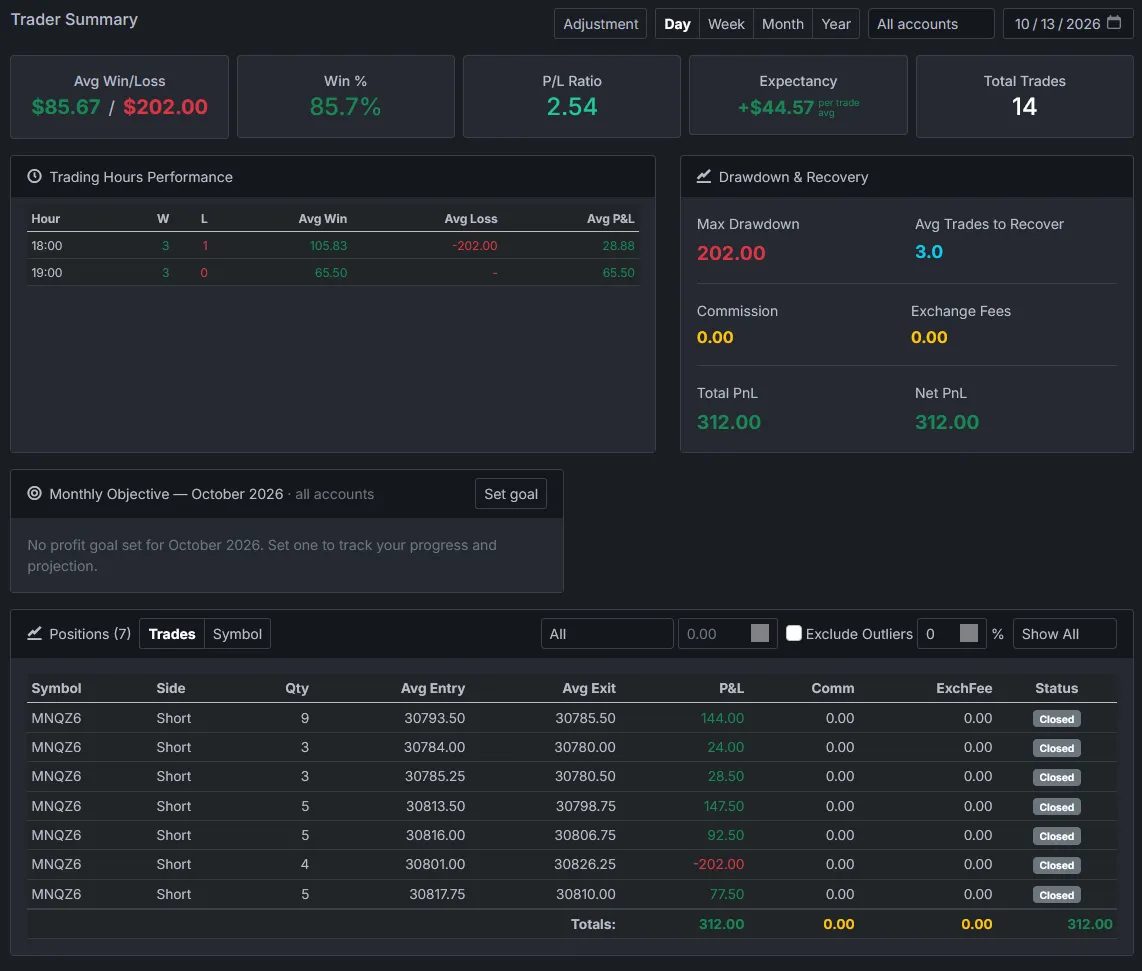
Each order in the file becomes part of a position, with weighted-average entries and exits, so one trade with three orders counts as one trade.
- Win rate, risk:reward and expectancy
- P&L by hour and by symbol
- Drawdown, trades to recover and an equity curve
- Pre-market check-ins matched to your results
Questions
Common questions
Does TradingView have a trading journal?
TradingView's trading panel has a Trading journal tab, which TradingView describes as text information about your orders and their times, and a History tab that lists your orders. Its help page for that panel doesn't describe statistics such as win rate or expectancy. A separate journal adds those.
Can you journal TradingView trades without connecting your account?
Yes. You export Order History as a CSV and upload it, so nothing has access to your TradingView or broker account. It works for Tradovate, AMP and Paper Trading accounts today.
How do I export my trade history from TradingView?
Open the trading panel, go to the Order History tab, open the broker menu, choose the data export, pick Order History and save the CSV. Each tab exports on its own.
Which TradingView brokers does Premo support?
Tradovate and AMP, plus TradingView's own Paper Trading. Each has its own import row because their columns differ. Other brokers connected to TradingView aren't supported today, but you can send us an export through the contact form.
Can I import TradingView paper trades?
Yes. Export the History tab of the Paper Trading panel and upload it on the TradingView Paper Trading row. The steps are in the TradingView Paper Trading guide.
Which TradingView trades does Premo journal?
The trades you actually took, from your Order History. It has no backtesting, and a Strategy Tester export is refused.
Other import sources

AMP - CQG
Journal AMP Futures trades from any CQG platform with a TradingView Order History export. CSV upload via TradingViewCQG
Every AMP CQG platform, exported through TradingView. Covered on the AMP page. CSV upload via TradingView
Quantower
Journal futures and crypto trades from the Quantower Trades panel export. CSV upload
TradeZero
Stocks, ETFs and options from your TradeZero trade history CSV, with fees and accounts. CSV uploadTradingView Paper Trading
Journal your TradingView paper trades from the Paper Trading History export. CSV upload via TradingView
Tradovate
Futures fills from the Tradovate Fills report, with commission and accounts. CSV uploadTrading involves substantial risk of loss and is not suitable for everyone. Nothing on this site or in the platform is financial, investment, tax or legal advice. Examples are illustrations, not real trades. TradingView, Tradovate, AMP and CQG are trademarks of their owners. Premo Trading is not affiliated with them.